
This step-by-step guide explains how to install AutoLISP scripts in AutoCAD and BricsCAD, how to load LISP files automatically at startup, and how to change command names or create command aliases.
If you downloaded a LISP file (.lsp) and want to start using it immediately, follow the instructions below.
The fastest way to run a LISP script is to just drag a .lsp file directly into the drawing window.
AutoCAD or BricsCAD will automatically load and execute the file.
Method 2 (recommended):
AutoCAD
Type APPLOAD at the command-line or, on the ribbon, go to Manage and click Load Application
In the dialog that appears, Browse for the script file (.lsp, .des, .vlx) and click Load .
If you do not want to load the script automatically but you want to keep it at hand, check Add to History
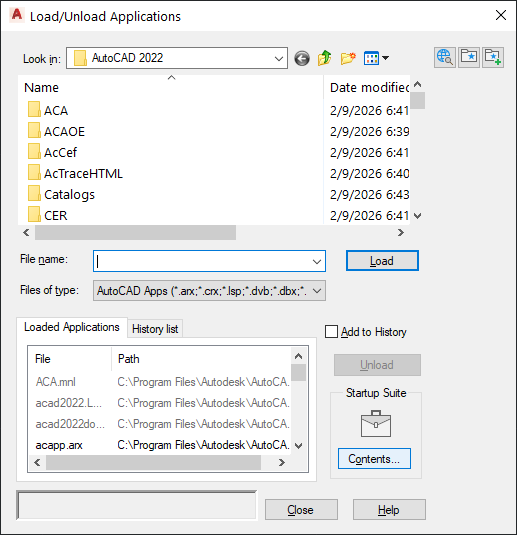
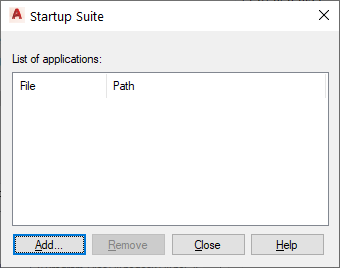
If you want to load the script automatically click on the Contents button beneath the Startup Suite heading.
In the new dialog, click Add and browse for the file.
BricsCAD
Type APPLOAD at the command-line or, on the ribbon, go to Manage and click Load Application
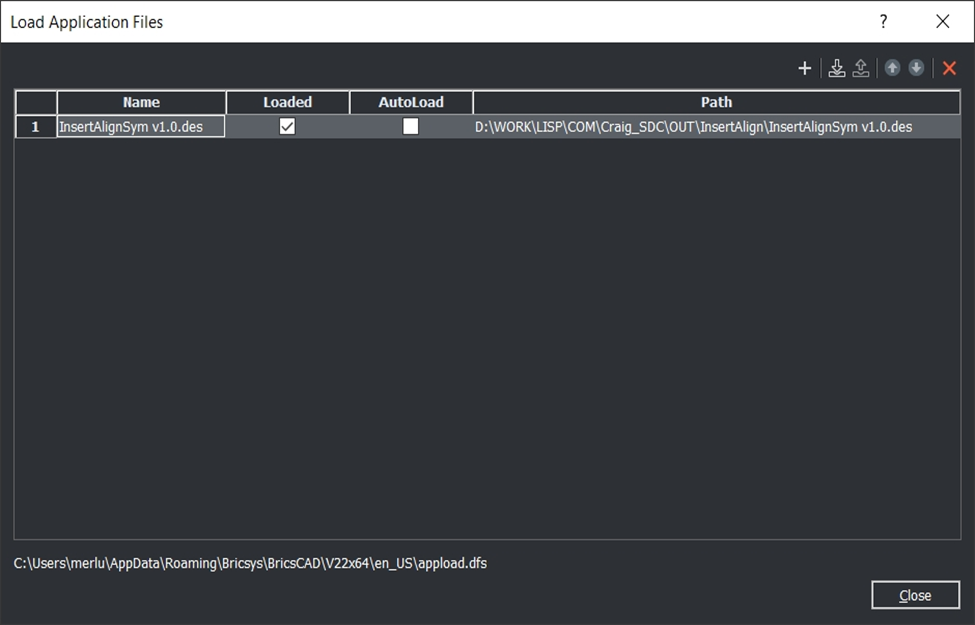
Click on the + button on the upper right corner to add the file to be loaded ( x to remove )
Browse for the script file (.lsp, .des, .vlx)
Check Loaded
If you want the app to load each time BricsCAD starts also check AutoLoad.
How to Change an AutoLISP Command Name
Method 1: Edit acad.pgp (default.pgp for BricsCAD)
Locate the .pgp file, usually in :
C:\Users\<YourUsername>\AppData\Roaming\Autodesk\AutoCAD 20xx\Rxx.x\enu\Support
or type
(findfile "acad.pgp")in the command line and get the location.
Open it in any text editor and add a line like this at the end.
DM, *DIMS_MOVE_LSSave the file
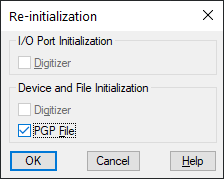
Type REINIT in AutoCAD
Check PGP File, click OK
Method 2: Edit the lisp file
Each AutoLISP command is defined in .lsp file using this structure:
(defun c:COMMANDNAME ()The text after ‘defun’ and c: is the command name you type in the command line.
Example:
Original command:
(defun c:DIMS_MOVE_LS()If you want a shorter command name, change it to:
(defun c:DM ()Save the file and reload it. Now you can type:
Command: DMThis is the safest way to customize command names without affecting system files but you have to make sure the new command name is not already a command alias.